
M17 Project CC1200 Hotspot

Last year I made a post about how to set up an M17 Project CC1200 Hotspot. It can be found here. Those directions are old. And these are the new ones.
I’ll leave that post up for historical context and it discusses how to get the CC1200 hotspot board, and how to program the CS7000 M17 radio from Connect Systems.
Let’s see if we can simplify this a little. Actually, a lot.
Key Takeaways
- The article provides updated instructions for setting up the M17 Project CC1200 Hotspot.
- Setting up the CC1200 is now much easier with a browser-based dashboard.
- Use a Raspberry Pi with a clean installation of PiOS, preferably Bookworm or Trixie.
- Follow simple commands to update and configure your system, including setting your Callsign.
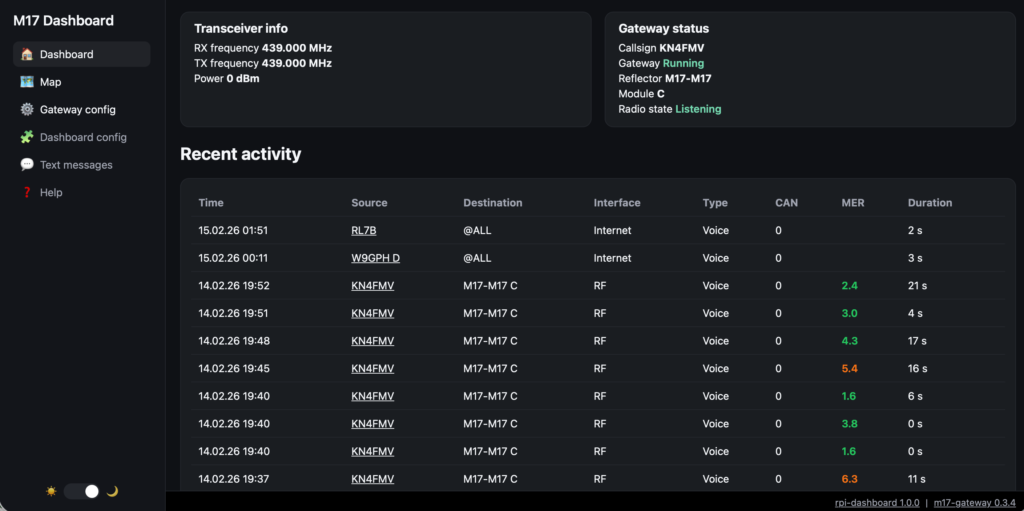
- Access the M17 Dashboard by entering your Raspberry Pi’s address in your browser.
The New Directions
Setting up the CC1200 is WAY EASIER now and it comes with a browser based dashboard that is WAY BETTER than the previous incarnation.
First of all, ready a Raspberry Pi with a clean installation of PiOS. The developers recommend using Raspberry Pi Bookworm, however, this works in Trixie as well.
They also recommend a Raspberry Pi Zero 2 board and I did this on a Pi 4 with 2GB of RAM. Mine is a headless installation controlled from ssh on another computer.
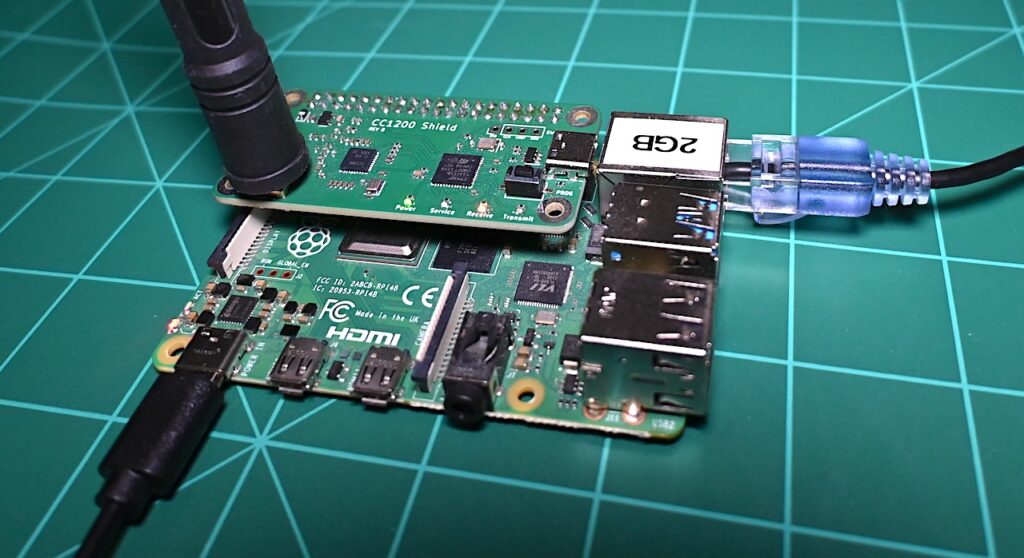
Following installation of PiOS you can download and run the script.
wget https://raw.githubusercontent.com/M17-Project/m17-hotspot-installer/refs/heads/main/m17-hotspot-installer.shOnce that completes then run the following 2 commands:
chmod u+x m17-hotspot-installer.sh
sudo ./m17-hotspot-installer.sh
The 2nd command will instruct you to reboot and then RUN IT AGAIN. Do that. Don’t forget. Also the script will prompt you for your Callsign and also ask if you want to update the CC1200 firmware. I recommend doing both of those things.
The M17 gateway is now enabled by default. Should you need to restart your M17 gateway it can be done on the Dashboard configuration tab in the left hand sidebar or you could pass this command in a terminal:
sudo systemctl start m17-gateway.service #or restartThat’s it! Seriously. That’s it.
M17 Dashboard
Go to your browser search bar and type in the address of your M17 Pi (e.g. http://192.168.1.20). That is a made up address. Be sure to use the address of YOUR M17 Pi. It will look like this.
Set your radio up for a Site and Module as per this video below.
It is really this simple now. Previous to this there were many steps involved and it didn’t work very well in my opinion.
This is much easier and it works!
73’s
KN4FMV
Good work! 🙂
Thanks for the great write-up! I’m the author of m17-gateway, the backend piece of the hotspot software. I just want to point out that the software now works with MMDVM hardware too. So people that want a dashboard that include features like M17 SMS and a map of operators locations can follow your instructions to install it on an MMDVM hotspot. (Note that it will be M17-only, no DMR or other modes.)
Hi John! Noticed you on KC Wide. Great to see I’m NOT the only M17 user here in eastern NC! I live on Ocracoke. The M17-OBX reflector is mine running on Digital Ocean. Been trying to rebuild it for the last couple days. Tried to just update it and blew the whole thing up! Anyhow, the reflector is now running, but, I’m bashing my head in trying to get the dashboard webserver working again. I try to keep something listening on M17-OBX C when I don’t have it all torn apart. . Give a shout sometime! I also usually have a radio listening to Brandmeister 31377.
73,
Tom
WB8OUE
Tom, I will give you a shout out occasionally on OBX Charlie.
Thanks,
John
KN4FMV