
TOOCAA NOVA Smart Home Laser Engraver Review
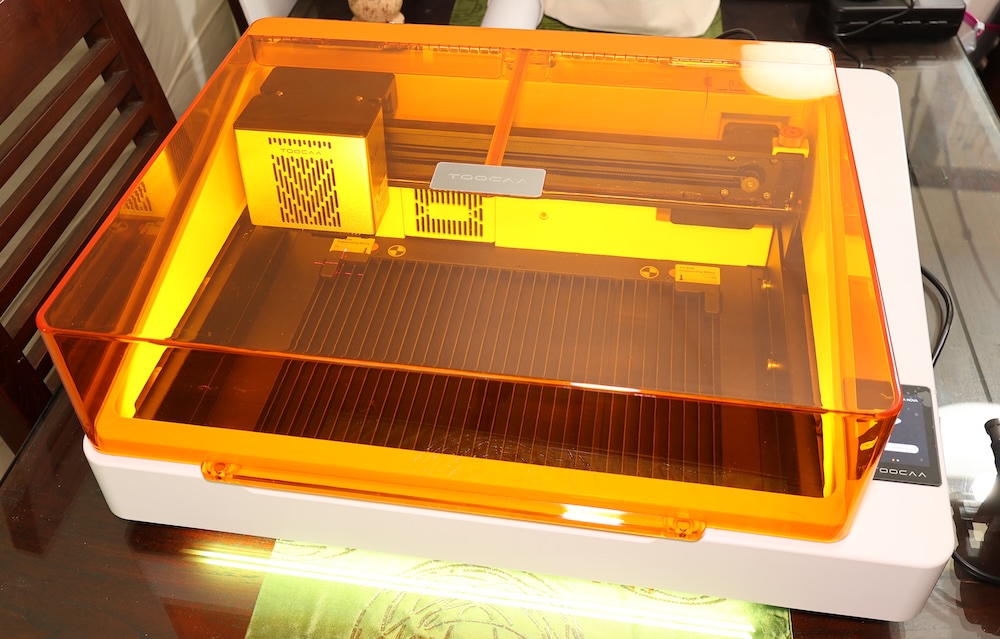
I’ve reviewed quite a few laser engravers on this blog. Recently, TOOCAA reached out to me and asked me to review their new TOOCAA NOVA Smart Home Laser Engraver.
Two years ago I reviewed the TOOCAA L2 Laser Engraver for them. That review can be found here.
I found that to be a good machine and I passed it along to a good friend of mine who uses it to this day. To sum it up, I have had good experiences with TOOCAA. Also, it needs to be stated that they provided me the TOOCAA NOVA to review and have in no way attempted to influence any kind of editorial control at all. What you read here will reflect my thoughts and my thoughts alone.
I was specifically sent the 20 Watt Creator Bundle ($1164.90). Additional modules can be purchased to include a 2 Watt IR module.
Safety
The TOOCAA NOVA is a Class 1 laser. There are 4 categories of laser safety and 3 sub-categories. Without going into it, Class 1 is the safest and Class 4 has the greatest possibility of injury. The downside to Class 1 is that it is in an enclosure. There are no doors that fall open to allow for items to pass-through. Lifting the top cover disables the machine. Can you beat the top lid safety protection? Yep. Should you? No. And I won’t tell you how to do it either.
Unboxing
Somewhere on this website you’ll likely find a statement I made saying explicitly that I do not do unboxing videos. TOOCAA states that the NOVA is ready to go within minutes after unboxing so I decided to go ahead and record if that were true or not.
Spoiler Alert: It is true. However, I’ll have more to say on that in a bit.
Here’s The Video
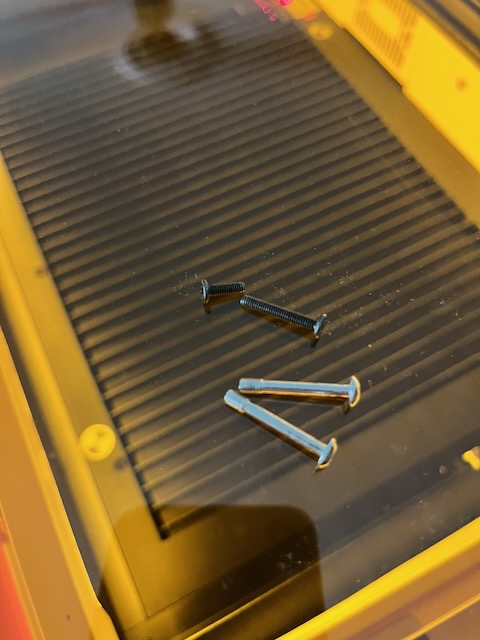
One issue I had during unboxing was the presence of two black machine screws in the bottom of laser box and after I shot this video I found two longer silver screws in one of the styrofoam compartments where the components are stored. I think you can catch of glimpse of them in the video above at one point.
I have since ascertained that the long silver screws are for mounting the included rotary. But I have yet to discover where the two black machine screws came from or where they go to. Conversely, I did a thorough visual inspection of the NOVA and I don’t see any indication that any hardware is missing from any component.
Documentation
The user manual is pretty basic and covers just what it takes to get up and running. The most thorough documentation source lives in the TOOCAA NOVA Wiki.
TOOCAA NOVA Operation
As stated above it is pretty well ready to roll right out of the box. You have to mount the laser module, then plug in the air assist. Additionally, you plug in the AC adapter and USB cable. BAM! You are ready to roll. Kind of. More on that below.
TOOCAA STUDIO
TOOCAA Studio is web based software which I think is pretty innovative. I’m a MAC guy and straight up I need to state you need a Chrome based browser to use it. Safari won’t work. This is a limitation of Safari, not TOOCAA. Conversely, lots of things like this won’t work in Safari mostly due to serial connectivity.
NOTE: I ran into some problems here. If you read and heed you won’t have these problems. And I’ll go ahead and make a statement here. Before you try anything perform a factory reset (in the settings menu) before you start.
Some folks on the Facebook group are having issues with the touchscreen and you can include me in that. TOOCAA said that doing a factory reset on the machine would fix that. It did. That’s why I recommended it.
So, I open TOOCAA Studio and during the connection process a box pops up and tells me that I need an update and the update can only be performed over WiFi. Okay.
Fun With WiFi
So I try to connect to WiFi over and over with no luck. I can connect the NOVA to WiFi and it displays an IP address which I am then supposed to put into TOOCAA Studio. Every single time it tells me that the IP I inserted is not found.
I tried 5, five, count ’em FIVE WiFi routers to include my iPhone hotspot with the same results. For TWO HOURS I tried to connect the WiFI and perform the firmware update. I can’t show you the screen casts I recorded because of my Navy Language Sentence Enhancers.
Additionally, I shut it all down went to another room to absorb some caffeine and think. I decided to try to connect with a Linux computer and wouldn’t you know it, it connected and performed the firmware update.
Firmware Update
The NOVA reported that the firmware was currently 0.9.2 and needed to upgrade to version 1.0.0. As I stated the firmware upgrade worked with a Linux computer and I have yet to be prompted to upgrade the firmware again. But check this out:
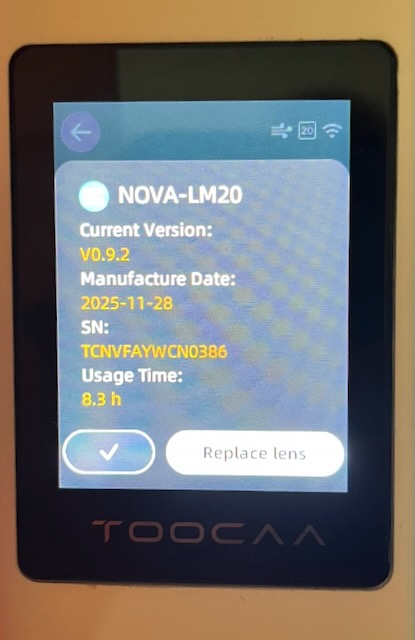
Current version 0.9.2. What?
To make things more interesting NOW I can connect to the TOOCAA NOVA over WiFi from my MacOS laptop. That is fixed.
Now, do you really want to get blown away? When I connect to Lightburn (which I’ll touch on later) the console reports the following:
Waiting for connection...
ok
[VER:1.3a.202506201830:]
[OPT:PHBW]
[MSG:Using machine:ESP32_V4]
Version 1.3a
TOOCAA…….it would appear that there are some firmware or firmware reporting issues here. I fully believe my NOVA firmware updated because now I can connect over WiFI on my Mac which I could not do previously. And I am no longer prompted to update the firmware.
Let me state for the record that once you get the firmware upgraded it all seems to be smooth sailing. Expect that subsequent shipments of the NOVA in the near future will ship with more mature firmware and that this will never transpire. This is why laser manufacturers send review units out to get a good shakedown.
DON’T LET THIS BE A DEALBREAKER. FIRMWARE OFTEN FIXES ISSUES LIKE THIS.
Is it annoying? Yes. Once you get that firmware loaded everything just starts clicking as it should.
Lightburn
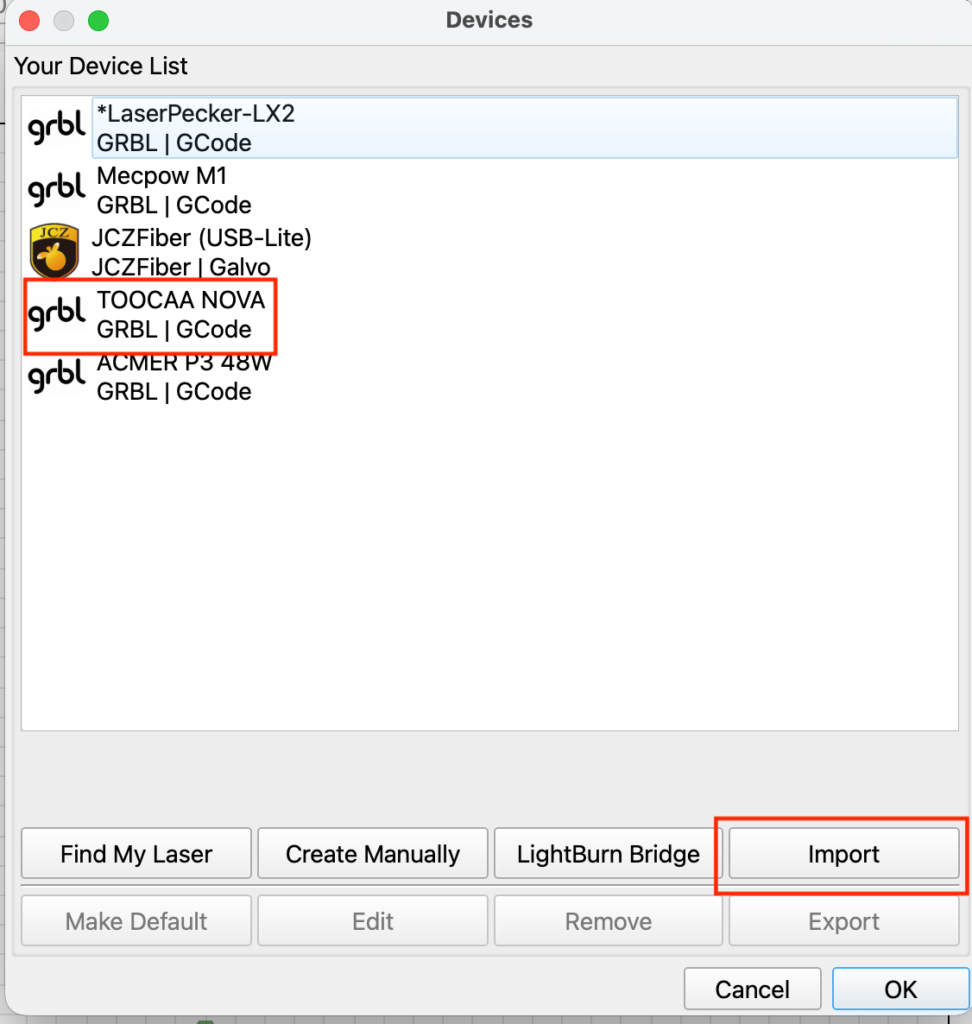
Very easy to use Lightburn with the TOOCAA NOVA. Simply download the .lbdev file and import it into Devices in Lightburn. In the pic below mine is already installed.
Backtracking to Setup
Here’s a video on setup. TOOCAA kept it super simple here. Good Job.
I do have to hand it to TOOCAA here. From opening the box to homing the machine is a breeze. The WiFi and firmware thing is a hot mess. Once you get past that the machine is solid.
Next Step – Engrave Something
I used TOOCAA Studio and asked the AI function to give me a picture of a Terrier. Framed it up and it defaulted to basswood and filled in settings. I decided to run with the defaults and it worked perfectly. Here is the proof:
Sweet. We’ll show more engraving stuff later.
Rotary Installation And Operation
Before you do any rotary work read up on it in the Rotary Wiki. I went through the steps and put together a quick video. Also do a dry run on something you don’t mind making mistakes on. If a customer needs 10 of something I buy more than 10 and use one sample to run tests on.
While I think the rotary setup is super innovative I wish the module would run down closer to the jaws. All is not lost as it is still a brilliant design.
TOOCAA NOVA Camera Calibration
Head back to the Wiki for the Camera Calibration Section. I will say that I’ve calibrated an awful lot of laser cameras in the past. After reading through the directions this is clearly the most intuitive and automatic calibration procedure I have seen.
To oversimplify this process, it goes like this: Place a piece of Kraft paper (provided in the materials kit) flat on the bed of the laser. Start the calibration procedure. It does everything for you. Kudos to TOOCAA on making this easy.
Projects And Stuff
Here’s a quick one and a fun one. Making a gift tag or place settings tag.
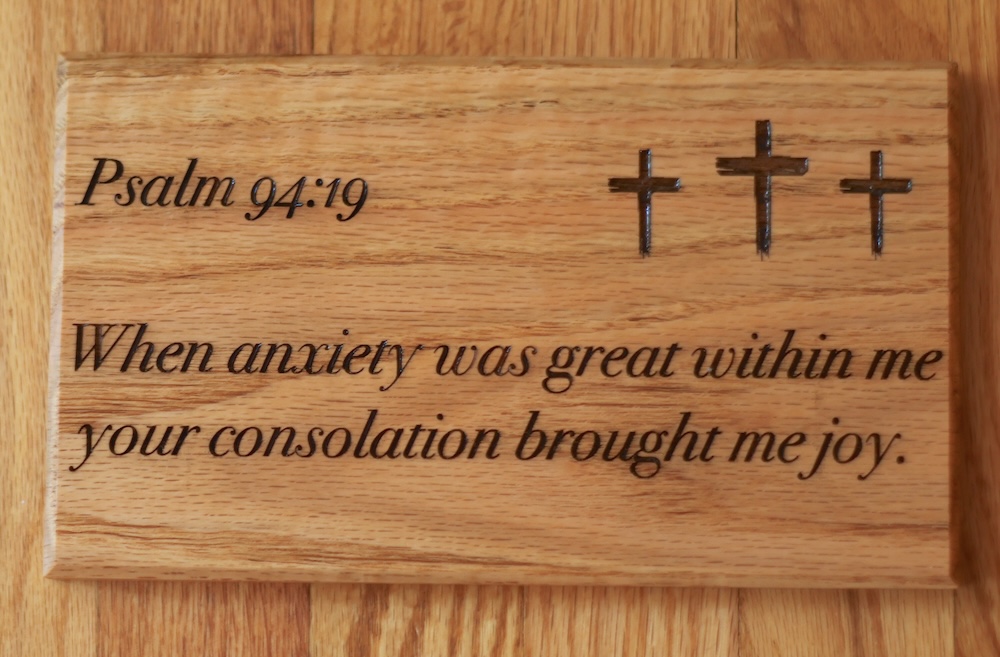
And here’s an engraving I just did on a piece of Oak.
Also, TOOCAA sent me a couple of packs of Color Board ($40 each). Additionally, they supplied me apack of 2.8mm basswood ($19.90). Next, I’ll find a project and do a simple mandala design with the colored plywood.
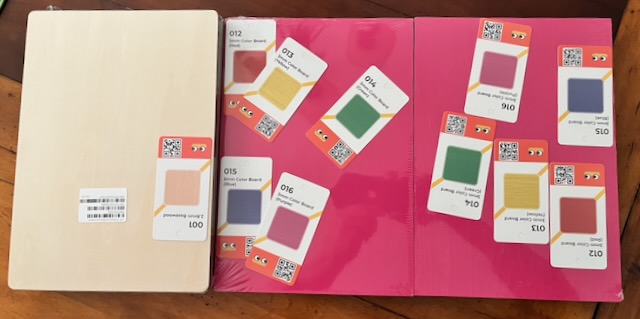
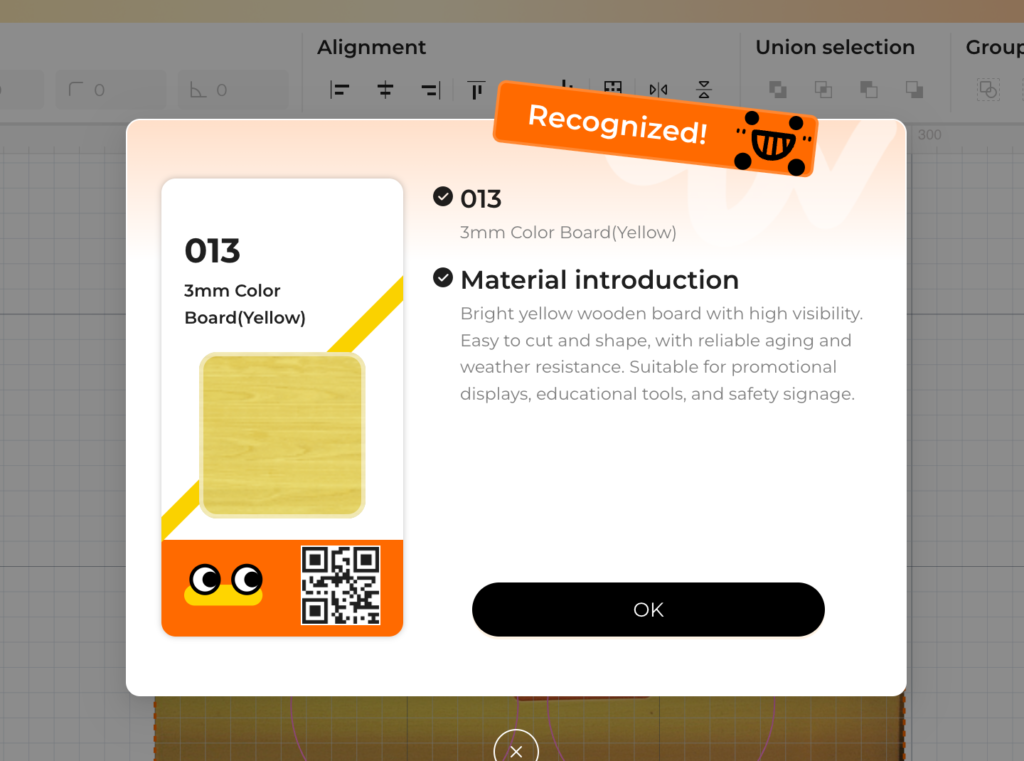
I took a couple pieces of the colored wood they sent me and made a quick project. The Color Board Cards make it super easy to set parameters for engraving. This brings me to a recommendation for TOOCAA.
RECOMMENDATION: After scanning the color card it auto-filled engraving parameters. My project involved cutting. Might be good to have selectable parameters for cutting and/or engraving.
And using the colored wood they sent me and the Color Cards I made these simple two colored designs. These look GOOD!
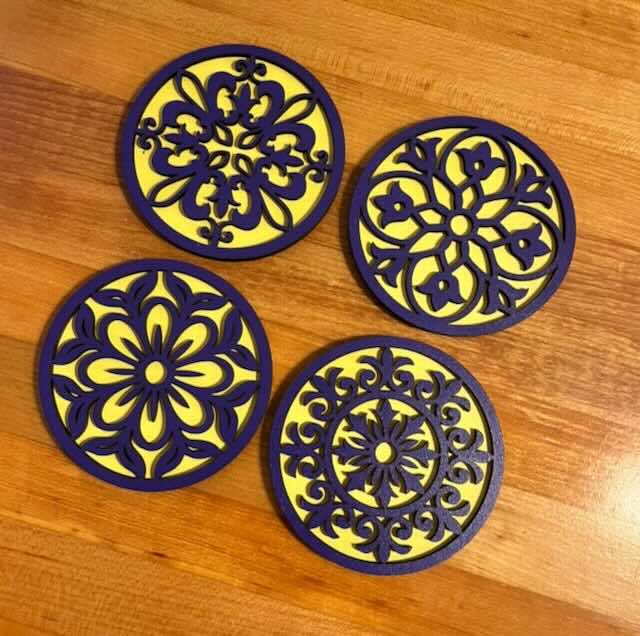
Cutting edges were super crisp. There was no engraving goop leeching all over the place and the cut edges were very clean. That’s what good settings and an auto focus will do for you.
Final Thoughts On The TOOCAA NOVA Laser Engraver
The Great
There are some really innovative features here. The fact that the X axis can be turned 90 degrees and in internal rotary can be installed AND USED EFFECTIVELY is pretty groundbreaking by my estimation.
Additionally, the small tool storage area inside the machine in its own compartment……..GENIUS.
The Color Board cards that can auto set engraving parameters is the PERFECT feature for someone brand new to laser engraving.
The camera calibration is the easiest, most hands off camera setup I have ever seen.
The tool kit includes a spare lens cover. That’s huge.
The Not So Great
You can only update the firmware over WiFi. Firmware updates should almost always be done over a wired connection on this kind of hardware in my opinion.. One WiFi hiccup and you’ll end up with a brick.
During initial setup (with the original shipping firmware) the WiFi would not connect while using the latest MacOS. I was able to connect on a Linux laptop in seconds and then subsequently update the firmware.
I and others observed touch screen issues making it difficult to input your WiFi password.
A factory reset fixed the larger part of the touch screen but the bottom row was still a bit iffy. I reported this to TOOCAA and they told me their engineers were looking into that code.
While what I just wrote seems bad the reality is that a reset and a firmware update fixed everything. Subsequent production will include improved firmware and none of these things will continue to be an issue.
Once I got the WiFi connected and the firmware updated the TOOCAA NOVA became the innovative beast it was designed to be.
Addendum
I would strongly recommend the TOOCAA NOVA to an operator who is new to laser engraving. The Class 1 Safety designation will keep you safe and the innovative features I mentioned about make this a great first laser. Old hands like me can enjoy the innovations as well.
I own a lot of lasers and following my reviews I generally give them away (because I have SO MANY LASERS) but I’m going to keep the NOVA and give something else away. That should tell you something.